 Mochi Hop Maker

Mochi Hop Maker GIF Studio
Pull and release a cheek to turn a photo or drawing into a looping GIF or a short video with sound.
Mochi Hop Maker Editor
Loading the studio…
Paint where you want the picture to stretch.
Pull a cheek and let go to make a loop.
Fine-tune motion
JPG, PNG, or WebP · up to 15 MB
Drop it on the canvas or paste while the studio has focus.
Your image stays on your device. No sign-up.
What you can do with Mochi Hop Maker
Give your own character a bounce
Try a sample or use your own photo or drawing. Pick which part moves and adjust the bounce. Your image stays on your device, and you can start without an account.
Save the bounce and the sound
Save a looping GIF or export a vertical or square video with optional squish sounds. You can turn off the site credit on the video.
Share where your friends are
Download your GIF for X, Facebook, or Discord. For TikTok, Instagram Reels, or YouTube Shorts, download the video and copy your caption in one click. To send it in a WhatsApp or Telegram chat, use your device’s share menu if the app is listed, or attach the downloaded file.
How to Use Mochi Hop Maker
Mochi Hop Maker turns a still photo or drawing into a looping cheek squish GIF. Try the strawberry mochi first if you want to see how the bounce works. Bring in your own picture once you know where you’d like the movement to start.
-
Pick a photo or sample
Choose Upload image or pick a sample character. The samples already have handles on both cheeks. With your own picture, tap a cheek, ear, or another spot to place a handle. Use center puts one in the middle.
-
Pull a cheek and let it bounce
Drag a handle a short distance, then release. The picture springs back and the studio makes a loop automatically. You can also tap Wiggle to make a quick GIF without dragging. Try a shorter pull if the face stretches too far.
-
Preview and download your GIF
Watch the loop in Your GIF and choose Download GIF if you like it. Choose Save peak as PNG for a still of the strongest stretch. The GIF and PNG guide explains what each export keeps.
Try a Mochi Hop Maker Sample
Pull the same cheek on two characters to see how the shapes stretch. Strawberry Mochi has a wide face, Pudding Cat has small details next to its cheeks, and Cloud Bunny is a good pick if you want to try moving an ear in Paint mode.
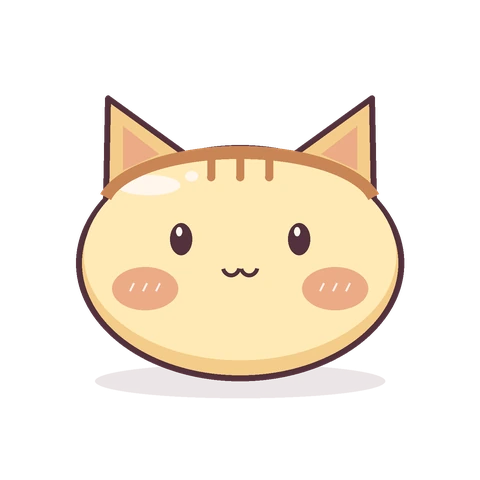
Pudding Cat
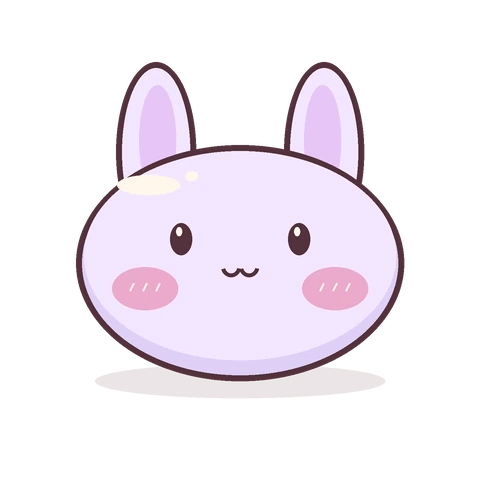
Cloud Bunny
Mochi Hop Maker Tips for Better GIFs
Choose a picture with room to stretch
Start with a front-facing face that leaves some space at the sides. A tight crop can make a pull look cut off. For a pet photo, try the soft part of the cheek beside the nose. For a drawing, try the tip of an ear or the corner of a smile.
Paint the part you want to move
Switch to Paint and brush a small oval over the cheek. The pink overlay marks the stretch area. Use Eraser around the eyes or whiskers if those details should stay still, then choose Done painting and test with a small pull.
Read the guide to painting a cheek for a step-by-step example.
Compare the bounce on the same picture
Start with Bouncy. If the cheek extends farther than you want, switch Feel to Gentle and pull again. For a more pronounced wobble on a simple cartoon, try Extra Wobbly. Comparing the presets on one image makes the differences easier to see.
Give each pull time to settle
For a single reaction, let the studio make a loop as soon as you release the handle. Use Record to put both cheeks in one GIF. Pull one cheek, give it a moment to spring back, then pull the other. Leave a brief pause at the end so the loop has room to settle. The two-pull recording walkthrough shows how to pace the moves.
Mochi Hop Maker FAQ
Help with image formats, phone controls, recording, and exporting a cheek squish GIF.
Is Mochi Hop Maker free?
Yes. You can try the samples, edit your own pictures, and download GIFs or PNGs for free without creating an account.
Which files can I use, and why won't my photo open?
Use a still JPG, PNG or WebP file up to 15 MB and 24 megapixels. Choose a file, drop it on the desktop canvas, or paste it while the studio has focus. If your phone saves HEIC photos, export a JPG copy first. If a file still will not open, try opening it in your photo app and saving a fresh copy.
Can I use Mochi Hop Maker on my phone?
Yes. Drag a pink handle with one finger or tap Wiggle. When your loop is ready, tap Download GIF. The downloaded file normally appears in your browser's downloads or the Files app.
If a swipe scrolls the page, start the next drag on the handle itself. Keep your finger close to where you started and release after a small movement. On a narrow screen, look for the preview below the studio after the file finishes generating.
Why is the wrong part of my picture stretching?
Choose Paint, erase pink marks from areas you want to keep still, and paint a smaller spot. Tap Done painting, then pull the new handle. Use Undo to reverse the last stroke or clear action.
How do I make the movement softer or bouncier?
Under Feel, choose Gentle for a short tug, Bouncy for a springier release, or Extra Wobbly for a bigger stretch and more wiggle. Changing the preset applies to your next pull. Make a fresh loop before downloading it.
How do I record more than one pull?
Choose a 3- or 5-second limit and tap Record. Pull several times, then tap Stop & make GIF or let the timer finish. Keep the tab visible while recording.
Can I save a still image with a transparent background?
After making a loop, tap Save peak as PNG to save the most stretched frame. PNG keeps transparent areas in a transparent source. The GIF fills transparent areas with a cream background.
Why do colors look different in the downloaded GIF?
GIF uses a limited color palette. Smooth gradients and subtle colors can look different from the live preview. Save the peak frame as a PNG if you need the original colors in a still image.
What can I try if my GIF won’t download?
If the preview shows an export error, tap Retry GIF. If the preview is ready, tap Download GIF and check your browser’s downloads. If a 5-second recording keeps failing, try a 3-second recording or make a short loop by pulling once and letting go.
How do I share a video with sound?
Make a GIF preview, then choose Share creation and Generate video. Save the video or share it from your device. Use a silent GIF if your browser can’t make a video.
Are my images uploaded or saved?
Mochi Hop Maker processes your image, paint strokes and exports in your browser. The editor keeps its working copy for the current session. Download your work before reloading or leaving. The editor saves a separate export and leaves the original image file as it was. Cloudflare measures page performance, such as load time. The homepage also loads Google Tag Manager and third-party advertising from Adsterra.
Who inspired Mochi Hop Maker?
This independent tool was inspired by the cheek-squishing idea in Moti Hoppe Maker by Saba no Games. The illustrations and editor were created for this site.